Phomemo M120 on Fedora 43
Getting the useful and affortable Phomemo M120 label printer to work on Fedora 43 takes a few tweaks.
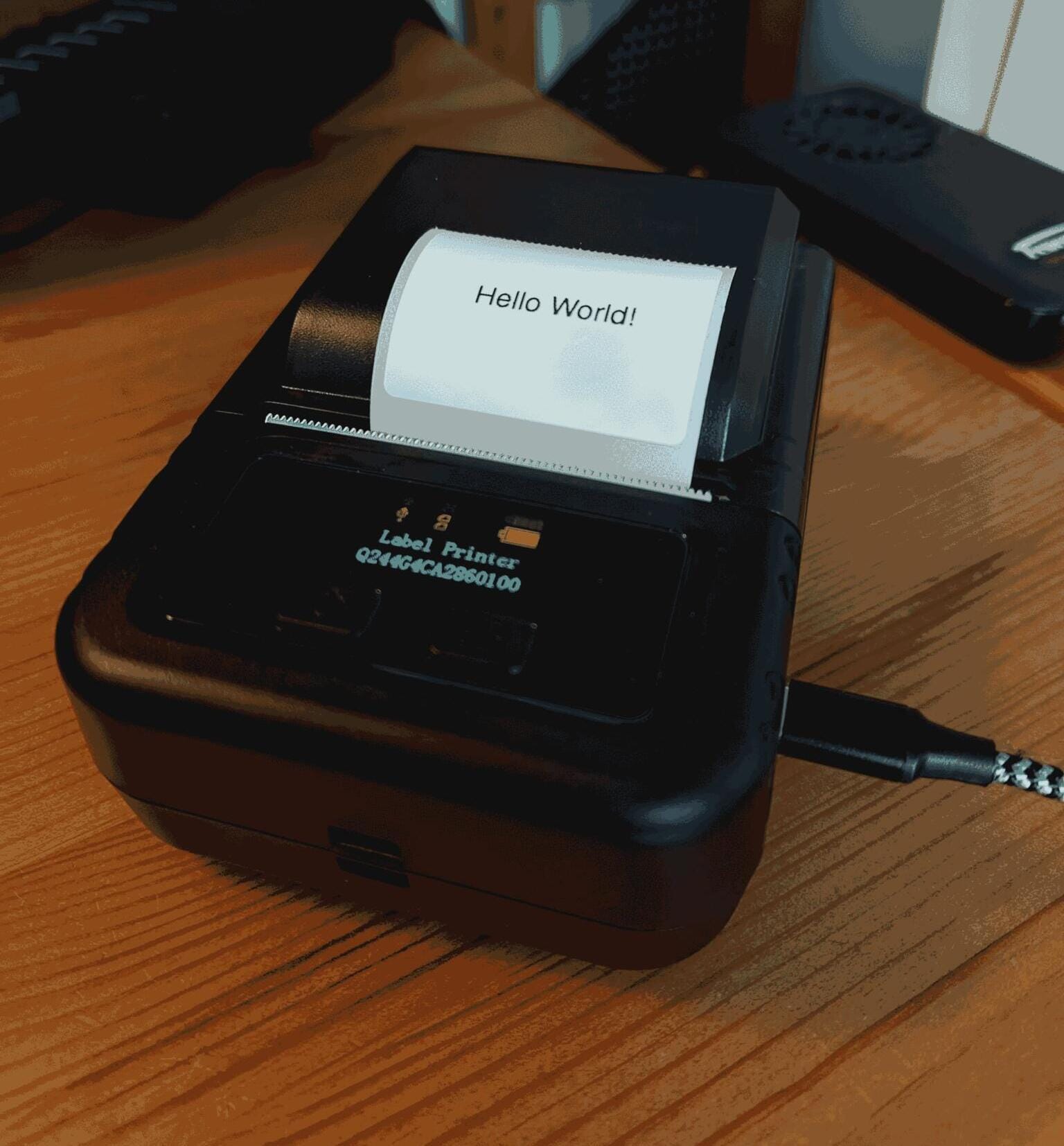
The Phomemo M120 is a label printer, very useful for printing little stickers with QR codes or text you can place on things you want to keep track of. It's also very affordable.
Getting it to work on Linux takes a few steps, and I thought somebody might be grateful finding this documented for a recent version of Fedora.
There is a repo called phomemo-tools by Github user vivier, which includes the main ingredients I used to get the printer to work for me on Fedora 43. But I had make some adjustments.
There are two main ways you can operate the printer through USB:
- Sending print commands directly to the device
- Installing a CUPS driver and using
lpcommands to print
The first approach requires knowledge of the right command sequences, which are documented (based on reverse engineering) here (see the section on "Protocol for M110/M120/M220" at the end of the README. But I had no luck making this work with the M120. I was able to get something to print using the M02 protocol, but it kept feeding a lot of unnecessary lines at the end of each print job because it's ultimately the wrong protocol. So I am giving up on that for now.
But the CUPS approach works, with some tweaking for Fedora 43. I might contribute my findings to the repo at one point, but for now I'll just document things here.
Recipe
First obtain the phomemo-tools package by Github user vivier and install it:
git clone https://github.com/vivier/phomemo-tools.git
cd phomemo-tools
sudo make install
(I am not actually sure if the install procedure above is necessary since the most important file will get installed manually in the steps below.)
Unfortunately this does not install the rastertopm110 executable correctly. You need to do this manually:
sudo cp cups/filter/rastertopm110.py /usr/lib/cups/filter/`
Then install the printer into the CUPS system:
sudo lpadmin -p M120 -E -v serial:/dev/usb/lp0 -P cups/ppd/Phomemo-M110.ppd
Note that we use the M110 driver even though our printer is an M120. (The same driver is supposed to work with M110, M120 and M220.)
Print labels
The right image size is 384 pixels in width. The height depends on the width-to-height ration of the labels you are using. I am using width 4 cm, height 3 cm labels, so the maximum meaningful image size is
384*3/4 = 288
For a "Hello World!" line perfectly centered on a label, generate an image like this:
magick -size 384x288 -background white -fill black -pointsize 20 -gravity center label:"This is a CUPS attempt!" hello.png
You can print then through CUPS:
lp -d M120 hello.png