
Why Your Nextcloud AI Assistant Takes Forever (And How I Fixed It)
Nextcloud's AI Assistant takes 3-5 minutes to respond by default. I built a Docker container that fixes this, delivering responses in seconds.

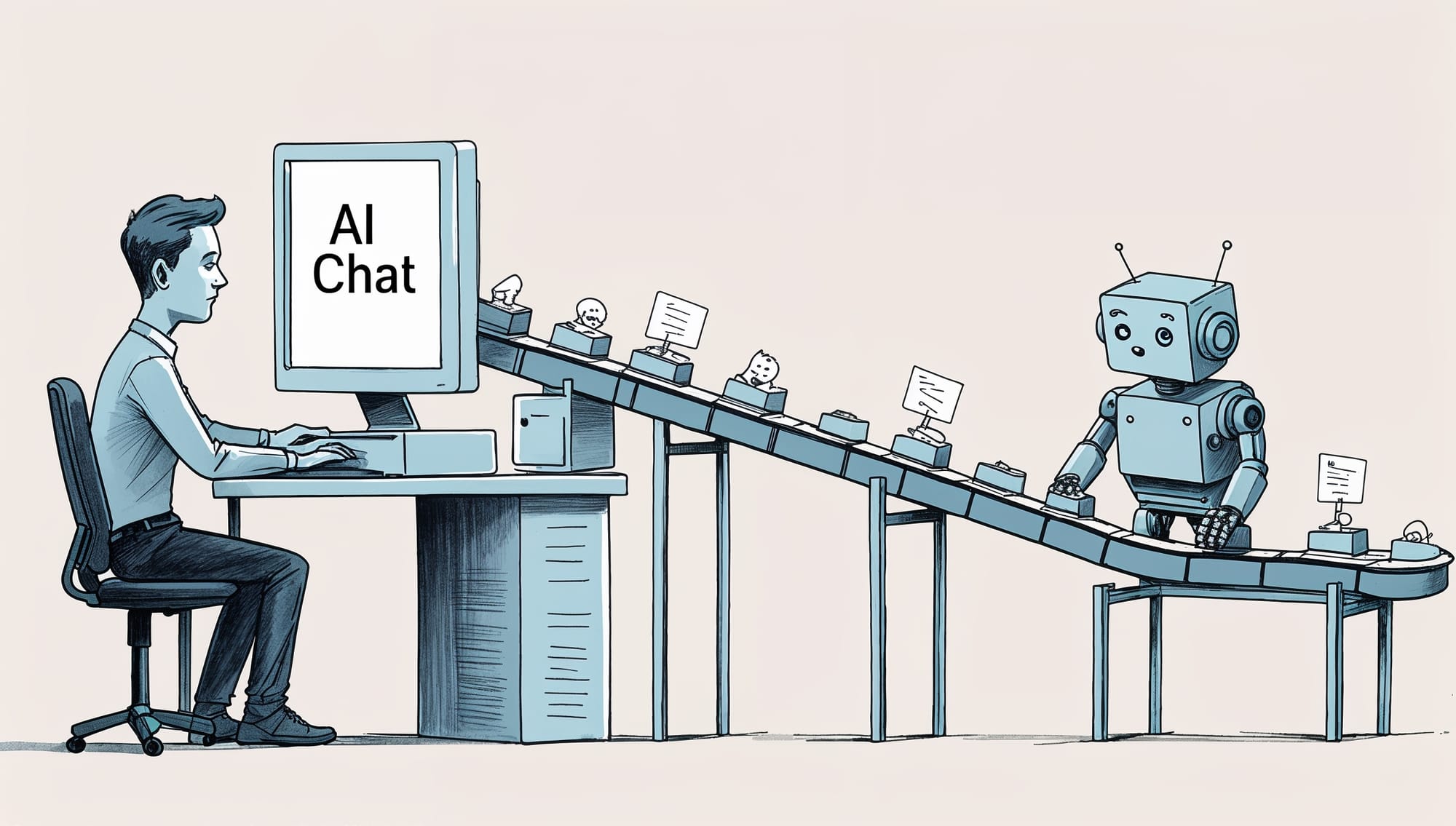
The bottom line is this: Without a continuously running background job processor, Nextcloud's AI Assistant is practically unusable, taking 3-5 minutes to respond to even simple queries. I've created a Docker container that solves this by ensuring background workers are always ready to process AI tasks, reducing response times from minutes to seconds. You can grab it from Docker Hub as jogojapan/nextcloud-ai-background-jobs:latest and your AI Assistant will finally work the way it should.
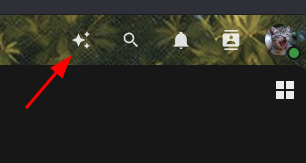
Here's what happened when I first tried the Nextcloud AI Assistant. After installing the app and configuring my API key, I clicked the AI assistant icon in the top right corner, selected "Chat with AI," and typed a simple question.
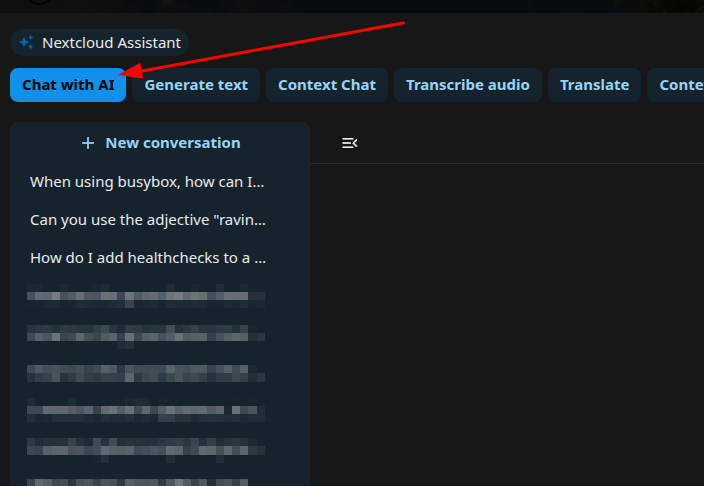
Then I waited. And waited. Three minutes passed. Still nothing. Finally, after nearly five minutes, I got my answer. For comparison, ChatGPT or Claude would have responded in seconds. Something was clearly broken.
The culprit turned out to be Nextcloud's background job system. By default, Nextcloud runs background jobs via cron every 5 minutes, or through AJAX calls when users interact with the web interface. For most Nextcloud features, this leisurely pace is fine - nobody cares if their file indexing happens now or in 4 minutes. But for an AI assistant, waiting 3-5 minutes for a response defeats the entire purpose. It's like having a personal assistant who takes a coffee break after every question.
What makes this particularly frustrating is that the AI models themselves are fast. Once the background job actually picks up your query, the LLM processes it in seconds. The entire delay comes from waiting for Nextcloud's job scheduler to notice there's work to do. It's the digital equivalent of having a Ferrari engine in a horse-drawn carriage - all that potential speed wasted by an antiquated delivery mechanism.
The obvious solution would be to run background jobs continuously instead of periodically. Nextcloud even documents this approach, suggesting you run php occ background-job:worker with specific time limits. But here's where it gets tricky: in a containerized environment, any manual configuration disappears the moment you restart or upgrade your container. You'd need to set this up again and again, which defeats the purpose of using containers in the first place.
Making Background Jobs Work in Docker Without Breaking Everything
My solution uses Supervisor to manage a continuously running background worker inside the Nextcloud container. Supervisor is like a lightweight version of systemd—it starts processes automatically and keeps them running. By building this into a custom Docker image based on Nextcloud's official fpm-alpine image, the background worker configuration persists across restarts and upgrades.
The implementation is surprisingly straightforward. The Dockerfile adds Supervisor to the base Nextcloud image and configures it to run the background job worker continuously. When the container starts, Supervisor automatically launches the worker process and restarts it if it crashes. No manual intervention needed, no configuration to lose - it just works. This is what the supervisor config looks like:
[unix_http_server]
file=/run/supervisord.sock
chmod=0700
username=supervisor
password=supervisor

[supervisord]
logfile=/var/log/supervisord.log
logfile_maxbytes=50MB
logfile_backups=5
loglevel=warn
pidfile=/var/run/supervisord.pid
nodaemon=true
user=root
minfds=1024
minprocs=200

[rpcinterface:supervisor]
supervisor.rpcinterface_factory = supervisor.rpcinterface:make_main_rpcinterface

[supervisorctl]
serverurl=unix:///run/supervisord.sock
username=supervisor
password=supervisor

[program:nextcloud-ai-worker]
command=/opt/nextcloud-ai-worker/taskprocessing.sh %(ENV_WORKER_INSTANCE)s
autostart=true
autorestart=true
startretries=3
startsecs=5
stopwaitsecs=10
stdout_logfile=/dev/stdout
stdout_logfile_maxbytes=0
stderr_logfile=/dev/stderr
stderr_logfile_maxbytes=0
environment=HOME="/var/www",USER="www-data"
Why Supervisor instead of other process managers? I actually tried several alternatives before settling on this approach. My first instinct was to use systemd, which would be the standard solution on a regular Linux server. Alpine Linux (which the Nextcloud container uses) doesn't include systemd by default, but it has OpenRC as an alternative. After hours of wrestling with OpenRC in a container environment, I hit wall after wall. The fundamental problem is that OpenRC expects to manage the entire system, including mounting /proc and other system resources that Docker already controls. Error messages about "permission denied" and "/proc already mounted" made it clear that OpenRC and Docker containers don't play nicely together.
The second approach I tried was even simpler: just run a shell script with an infinite loop. Start a background worker for 2 minutes, sleep while it runs, then start the next one. Nextcloud's background worker even supports a -t parameter to specify how long it should run before terminating. This seemed perfect - no process manager needed, just a simple loop.
But reality had other plans. The background worker's timing is approximate at best, often running 5-10 seconds longer than specified. If you try to start a new worker while the previous one is still finishing up, you get error messages. You could work around this by adding longer sleep periods between workers, but then you create gaps where no worker is running - exactly the problem we're trying to solve. During those gaps, your AI queries sit unprocessed, and you're back to waiting minutes for responses.
The Technical Details You Actually Care About
The solution leverages Nextcloud's built-in background job worker, which already knows how to process all types of background tasks, including AI requests. The key insight is that this worker needs to run continuously, not periodically. By using Supervisor to manage the worker process, we get automatic restarts, proper logging, and clean shutdown handling - all the benefits of a process manager without the complexity of trying to run a full init system inside a container.
The Docker image starts from nextcloud:fpm-alpine as its base. This gives us a minimal, secure foundation with PHP-FPM already configured for optimal performance. Alpine Linux's small footprint means the additional Supervisor layer adds minimal overhead - just a few megabytes to the image size. The Supervisor configuration tells it to run php /var/www/html/occ background-job:worker and restart it if it exits for any reason. This is the script that Supervisor runs regularly:
#!/bin/sh
echo "Starting Nextcloud AI Worker $1"
/var/www/html/occ background-job:worker -t 120 'OC\TaskProcessing\SynchronousBackgroundJob'
One subtle but important detail: the worker runs as the www-data user, not root. This maintains Nextcloud's security model where the web server user owns the files and processes them. Running background jobs as a different user would create permission headaches and potential security issues. Supervisor handles this user switching automatically based on the configuration.
The beauty of this approach is its simplicity. There's no complex orchestration, no inter-process communication, no state to manage. The background worker does what it always did - process jobs from Nextcloud's queue. We just ensure it's always running instead of starting periodically. This means all of Nextcloud's existing job handling logic remains intact, including prioritization, error handling, and job locking to prevent duplicate processing.
Performance-wise, the continuous worker approach has minimal impact on system resources. When there are no jobs to process, the worker sleeps, consuming virtually no CPU. Memory usage is comparable to running any other PHP process - typically 50-100MB depending on your Nextcloud configuration. For the dramatic improvement in AI assistant responsiveness, this is a negligible cost.
What This Means for Your Nextcloud Instance
Installing this Docker image transforms the Nextcloud AI Assistant from a patience-testing novelty into a genuinely useful tool. Response times drop from 3-5 minutes to just a few seconds - fast enough for actual conversation. You can ask follow-up questions without losing your train of thought. The AI integration finally feels native rather than bolted on.
The installation process is identical to using the standard Nextcloud Docker image. Just replace nextcloud:fpm-alpine with jogojapan/nextcloud:ai-fpm-alpine in your Docker Compose file or run command. All your existing volumes, environment variables, and configurations work exactly the same. The only difference is that background jobs now process immediately instead of eventually.
This improvement extends beyond just the AI chat feature. Any Nextcloud app that relies on background jobs benefits from faster processing. Text recognition, image classification, and other AI-powered features respond more quickly. Even non-AI background tasks like file scanning or external storage updates happen sooner, though the improvement is most noticeable for interactive features like the AI assistant.
There's an observation to be made here about user expectations and system design. Nextcloud's traditional background job approach makes perfect sense for a file sync platform where operations can happen lazily in the background. But as Nextcloud evolves to include real-time features like AI assistants, the infrastructure needs to evolve too. This Docker image bridges that gap, providing the responsive background processing that modern features demand without requiring changes to Nextcloud core.
For Nextcloud administrators, this solution removes a significant pain point. You can simply deploy this image and everything works as expected. It's the kind of solution that makes you wonder why it wasn't the default all along—though to be fair, continuously running background workers do use more resources than periodic cron jobs, so it makes sense as an opt-in enhancement for those who need it.
候補を比べる場合は、目的、使用場面、サイズ、付属品を同じ基準で確認すると判断しやすくなります。商品仕様や選び方を比べたい場合は、ブルアカ コスプレから関連情報を確認できます。商品が届いたら内容を早めに確認し、必要な調整や追加準備を本番前に済ませましょう。
The code is open source and available on GitHub if you want to build your own variant or understand exactly what's happening under the hood. The entire implementation is under 50 lines including the Dockerfile and Supervisor configuration - a testament to the Unix philosophy of small tools doing one thing well. Sometimes the best solutions are the simple ones that just remove friction from the system.